
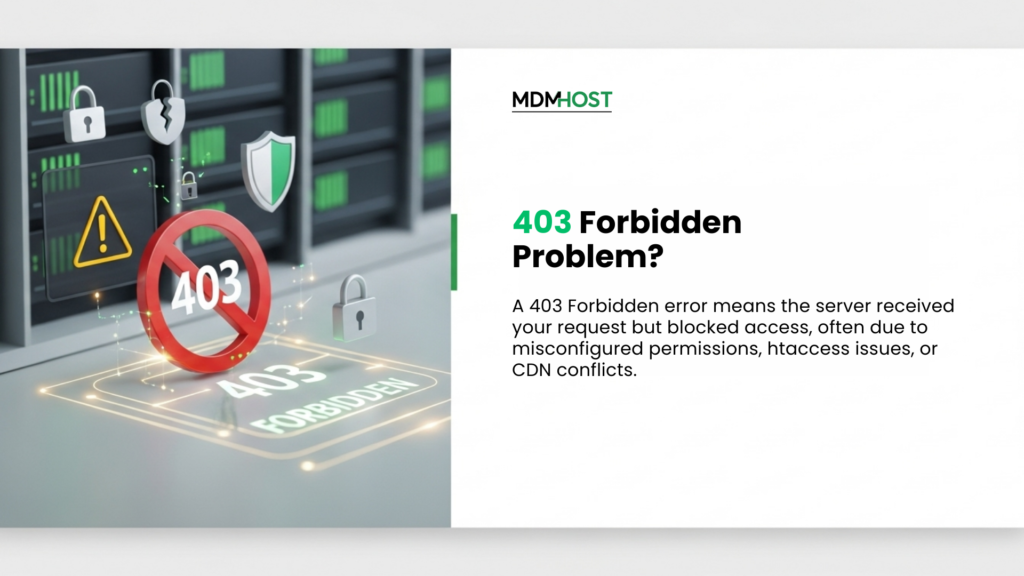
The 403 forbidden problem pops up when a server understands your request but refuses access. In plain terms: the page exists, but you don’t have permission to view it. This usually comes down to rules and security layers on Apache, Nginx, or services like Cloudflare, plus site-level settings in WordPress. You’ll often see messages like “Forbidden” or “Access denied,” especially if file permissions are wrong, an .htaccess rule is too strict, a CDN is serving a blocked cache, or DNS is pointing to the wrong place.
In this guide, you’ll get 11 quick, practical methods to diagnose and fix the issue, from browser checks and VPN tests to permission resets, clean configs, and DNS verification. Follow the steps in order, test after each change, and you’ll resolve the 403 forbidden error without guesswork.
What Is the 403 Forbidden Problem?
The 403 forbidden problem is an HTTP status code that tells you your request was received, understood, but blocked by the server. Unlike a 404 error (page not found), the page actually exists; you’re just not allowed to access it. This block usually comes from strict rules in systems such as Apache, Nginx, Cloudflare, or security layers within WordPress. You may see versions like “403 :Forbidden: Access is denied,” “You don’t have permission to access this resource,” or “Nginx 403 Forbidden.”
All of these point to the same thing: the server is protecting a file, folder, or resource because something in the configuration doesn’t look right. Most of the time, this happens due to misconfigured file permissions, a corrupted .htaccess file, missing index pages, CDN conflicts, cache mismatches, or incorrect DNS settings that point your domain to the wrong server. The good news? All of these can be fixed with simple steps, and that’s exactly what the rest of this guide covers.
How to Fix the 403 Forbidden Problem
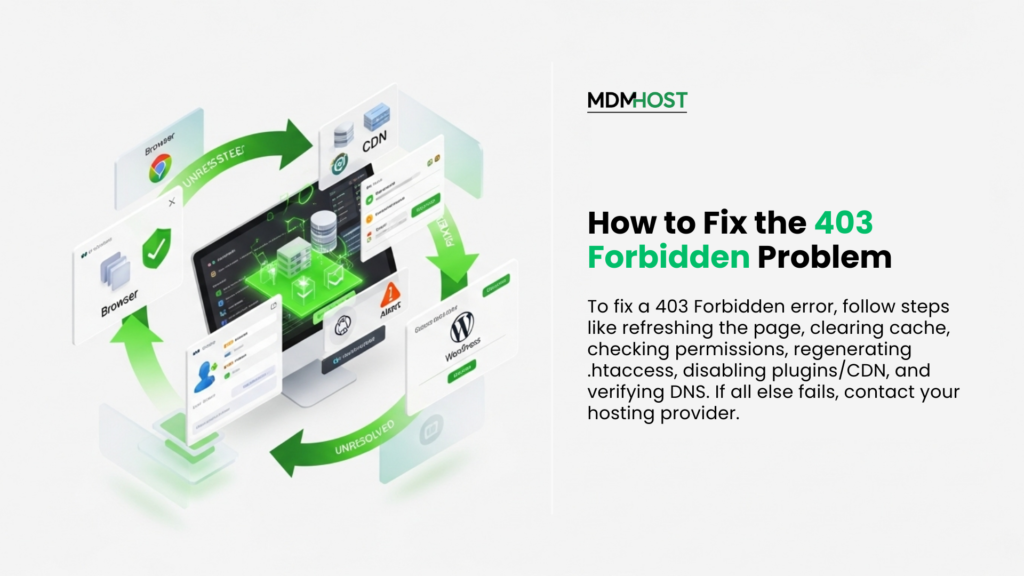
Fixing the forbidden problem requires a step-by-step approach because the error can come from multiple layers: browser, DNS, server, CDN, or WordPress. Follow these 11 simple methods in order. After each step, refresh your page to check if the issue is gone.
Refresh the Page and Check the URL
Sometimes the error is temporary or caused by typing a directory instead of a file. A quick refresh or correcting the URL can instantly solve the issue.
Clear Browser Cache and Cookies
Your browser may be loading an old or restricted version of the page. Clear your cache to force the browser to fetch fresh files from the server. This often fixes the forbidden problem caused by stale cookies.
Disable Your VPN
Some servers block VPN traffic or certain IP ranges. Turn off your secondary keyword: VPN connection once to check if the page loads.
Check File & Folder Permissions
Incorrect permissions are one of the major causes of access denial.
Use the recommended values, Folders: 755 and Files: 644. If permissions are too strict (like 600 or 700 for folders), the server blocks access.
Delete and Regenerate the .htaccess File.
If you’re using Apache, a broken .htaccess can trigger the 403 forbidden problem.
Fix it by connecting via File Manager or FTP. Deleting the existing .htaccess and regenerating a clean file by saving Permalinks in WordPress.
Disable All WordPress Plugins Temporarily
A misconfigured plugin, especially security, firewall, or redirect tools, may block access. Rename the plugins folder to disable everything, then reactivate plugins one by one to find the culprit.
Turn Off CDN Temporarily
CDNs sometimes serve a restricted cached version. Disable the CDN for a moment to confirm whether the issue comes from cached content.
Check Hotlink Protection Settings
If hotlink protection is set incorrectly, even your own images or scripts may be blocked. Disable or adjust these settings in your hosting panel or Cloudflare dashboard.
Run a Malware Scan
Malware often injects rules into .htaccess, changes file permissions, or adds hidden redirects.
Use tools like Wordfence, Sucuri, and a hosting malware scanner. Clean or restore infected files if anything suspicious is found.
Fix DNS Settings
If your domain points to the wrong IP, the server rejects the request. Make sure your A record, IP address, and nameservers match your hosting provider’s instructions.
Contact Your Hosting Provider
If none of the above works, the issue may be due to Server-side firewalls, Permission locks, Rate limit, and Hosting-level security rules. Your host can check the logs and fix the 403 forbidden problem directly.
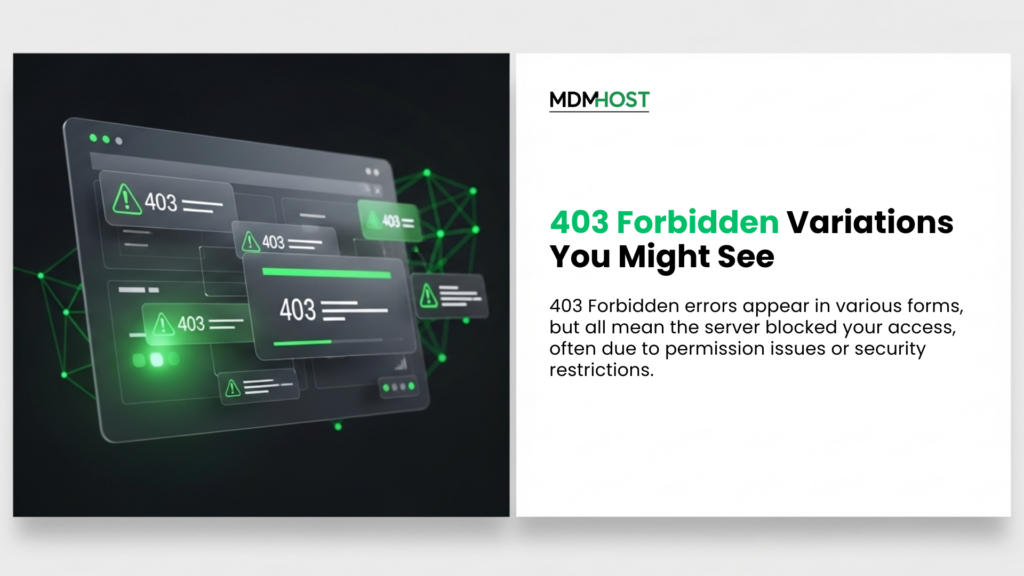
403 Forbidden Variations You Might See
It doesn’t always appear in the same wording. Different servers, CMS platforms, and security tools display their own version of the error, but they all mean the same thing: access is blocked. Here are the most common variations you might come across:
- “403 Forbidden: You don’t have permission to access this resource”
- “403 :Forbidden: Access is denied”
- “Error 403: Forbidden”
- “HTTP Error 403: Forbidden”
- “403 Forbidden Nginx”
- “Forbidden: You are not allowed to access / this server.”
- “You are not authorized to view this page.”
“It appears you don’t have permission to access this page.” - “Client does not have permission to get URL / from this server (403)”
- “Access to this resource is denied.”
These variations might look different, but the root cause is the same: the server understands the request but refuses to authorize it. Whether the message comes from Apache, Nginx, Cloudflare, or your CMS, the next sections will help you fix it.
Conclusion
The 403 forbidden problem may look intimidating, but it’s almost always caused by fixable permission or configuration issues. Whether it comes from a strict .htaccess rule, wrong file permissions, a conflicting plugin, or outdated CDN/DNS settings, the solution is usually straightforward once you check each layer step by step. By following the 11 simple methods in this guide, starting with browser fixes, then moving into server, DNS, and WordPress checks, you can quickly identify what’s blocking access and restore your website to normal.
Most importantly, applying the prevention tips will help you avoid repeated 403 errors in the future and keep your site stable, secure, and accessible for users. A 403 doesn’t mean your website is broken; it simply means the server is protecting a resource. With the right adjustments, you can regain access in minutes.
Frequently Asked Questions
It appears when the server understands your request but blocks access due to permissions, security rules, or configuration errors.
Common causes include wrong file permissions, a corrupted .htaccess file, CDN conflicts, missing index pages, incorrect DNS settings, or plugin issues.
Yes. Some websites block certain IP ranges. Turning off your VPN connection once can help confirm whether the VPN is the cause.
Start with simple steps:
Refresh → clear cache → disable VPN → fix permissions → regenerate .htaccess → turn off CDN → check plugins → verify DNS.
Yes. Malware may modify permissions, inject rules, or corrupt important files. Running a scan often helps detect the root cause.
Keep permissions correct, update plugins regularly, monitor .htaccess, use security tools, and double-check DNS whenever you move hosting.